Share types and sizes
Link your CSA product, then choose how members pay, pick up, and customize their box.
A share type is a CSA product you sell, like “Veggie Box” or “Flower Share”. Each share type has sizes (Half, Full, Family…), and these come straight from your Shopify product’s variants. You change names and prices in Shopify, and Copia picks them up.
Tip: Call it something other than “share”? Change the wording everywhere in Settings → Terminology. For example, “Box Types” instead of “Share Types”.
Link your CSA product
- Go to Copia → Share Types.
- Click Link Shopify product.
- Search for your CSA product and select it.
- Click Save.
Copia creates the share type with one size per variant.
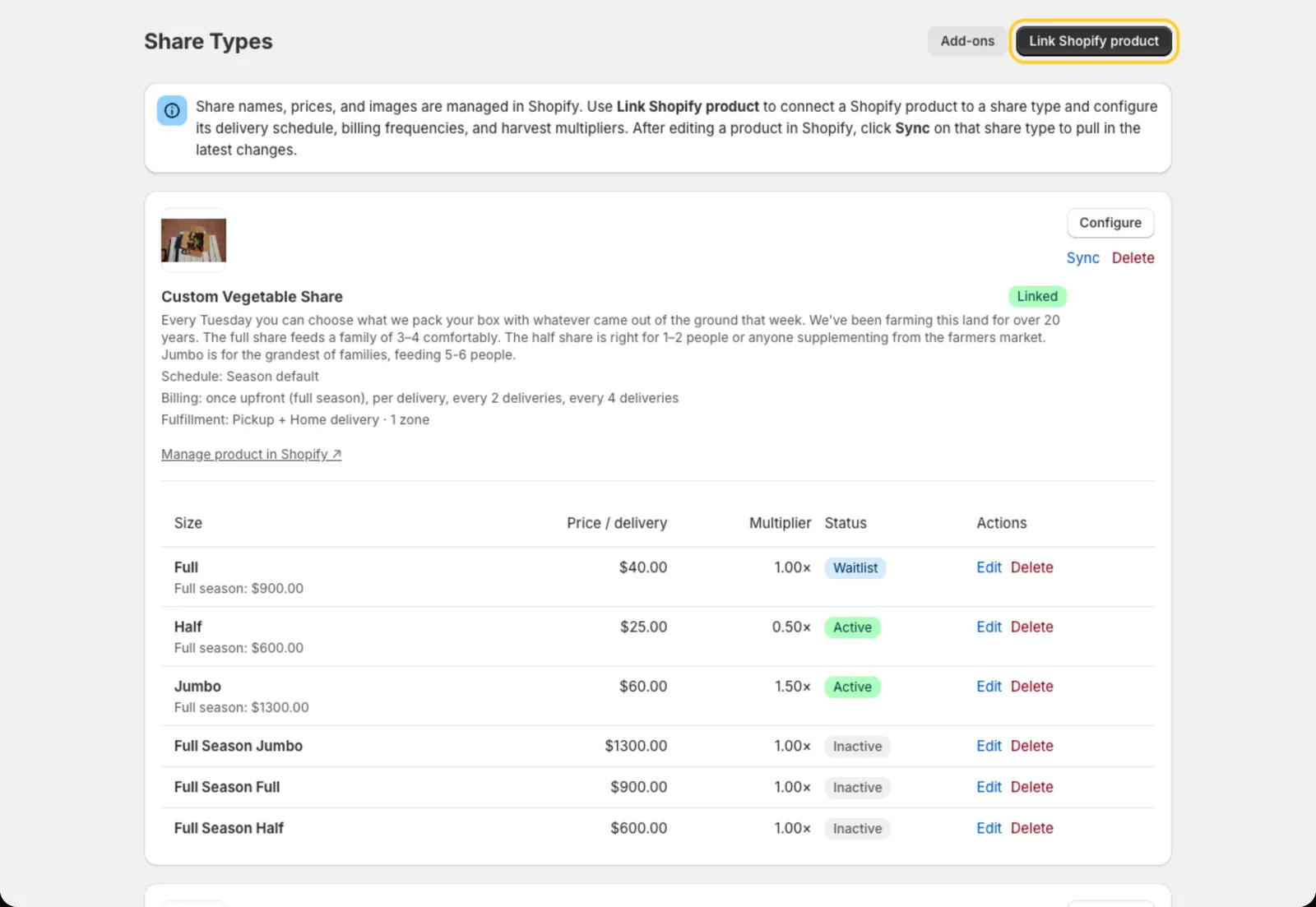 Each linked product shows its sizes and prices from Shopify.
If you change variants in Shopify later, click Sync on the share type to pull in the changes.
Configure the share type
Click Configure to open the share type’s settings. Here’s what each section does.
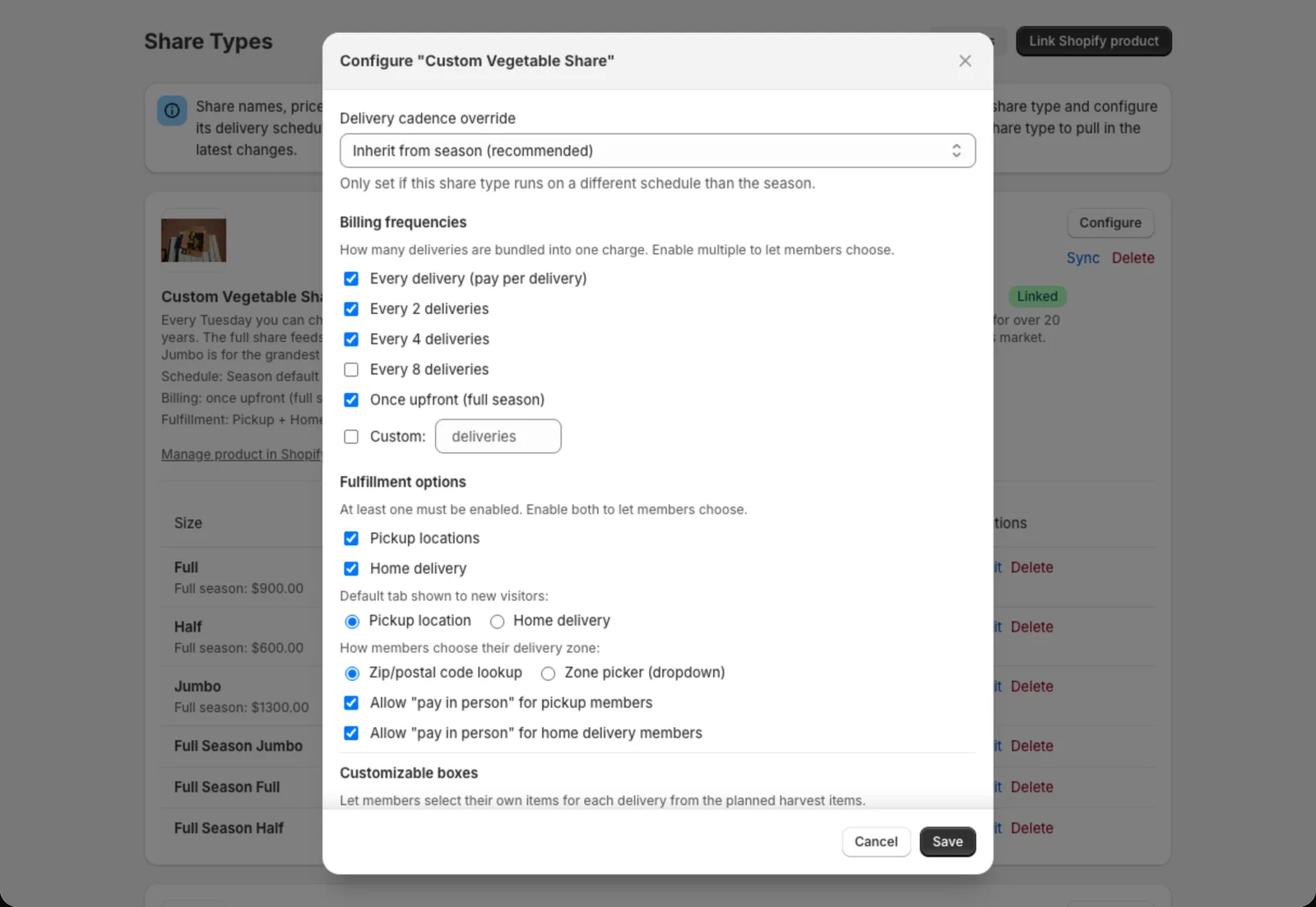
Billing frequencies
How many deliveries are bundled into one charge. Turn on more than one to let members choose:
- Every delivery: billed each time a box goes out
- Every 2, 4 or 8 deliveries: fewer, larger charges
- Once upfront (full season): one charge for the whole season
- Custom: any other number of deliveries per charge
Fulfillment options
Turn on Pickup locations, Home delivery, or both. You can also allow pay in person for pickup or delivery members. They skip online payment and pay you when they get their box.
Home delivery and zones
If you deliver, add delivery zones. Each zone is a list of zip/postal codes with its own delivery fee and optional delivery instructions. You can also set a default delivery fee and a minimum order amount.
Members can find their zone either by typing their zip code (zip/postal code lookup) or by picking from a list (zone picker). To deliver anywhere, turn on Accept all zip codes.
Customizable boxes
Turn this on to let members build their own box each week from the items you’ve planned. You price each item in Harvest Planning. The Reminder setting is for a “build your box” email that’s coming soon. It doesn’t send anything yet.
Change cutoff
Cutoff (days before delivery) and Locks at (farm time) set when each delivery locks. After that, members can’t skip, pause, cancel or change it. A late pause or cancellation starts with their next delivery. See The change cutoff.
Member box preferences
Choose what members can do from the member portal:
- Never include: flag items they never want, from your Member item list
- Swaps: swap an item every week, or just for one delivery, from the same list
- Dietary notes: notes for whoever packs the box
- Self-cancellation: cancel their own membership
- Skip deliveries: skip individual weeks
Member capacity
Set the most members this share type can have (leave it blank for no limit). You can show a “X spots remaining” badge in the signup form, and choose whether to keep selling once it’s full.
Size settings
Click Edit next to a size to set:
- Short tagline and description, shown in the signup form (for example, “Feeds 1–2 people · ~3–5 lbs”)
- Harvest multiplier: how much this size gets compared to a full share. 1.0 is full quantities and 0.5 is half. Copia uses it to work out harvest totals.
- Enable waitlist: when full, new signups join a waitlist instead of paying
- Enable trial box: sell a single one-time box on the next delivery date, or let them pick the date. See Waitlists and trial boxes.
- Active: hide a size from the signup form without deleting it
Add-ons
Extras like eggs, bread or flowers are set up separately. See Add-ons.