Add-ons
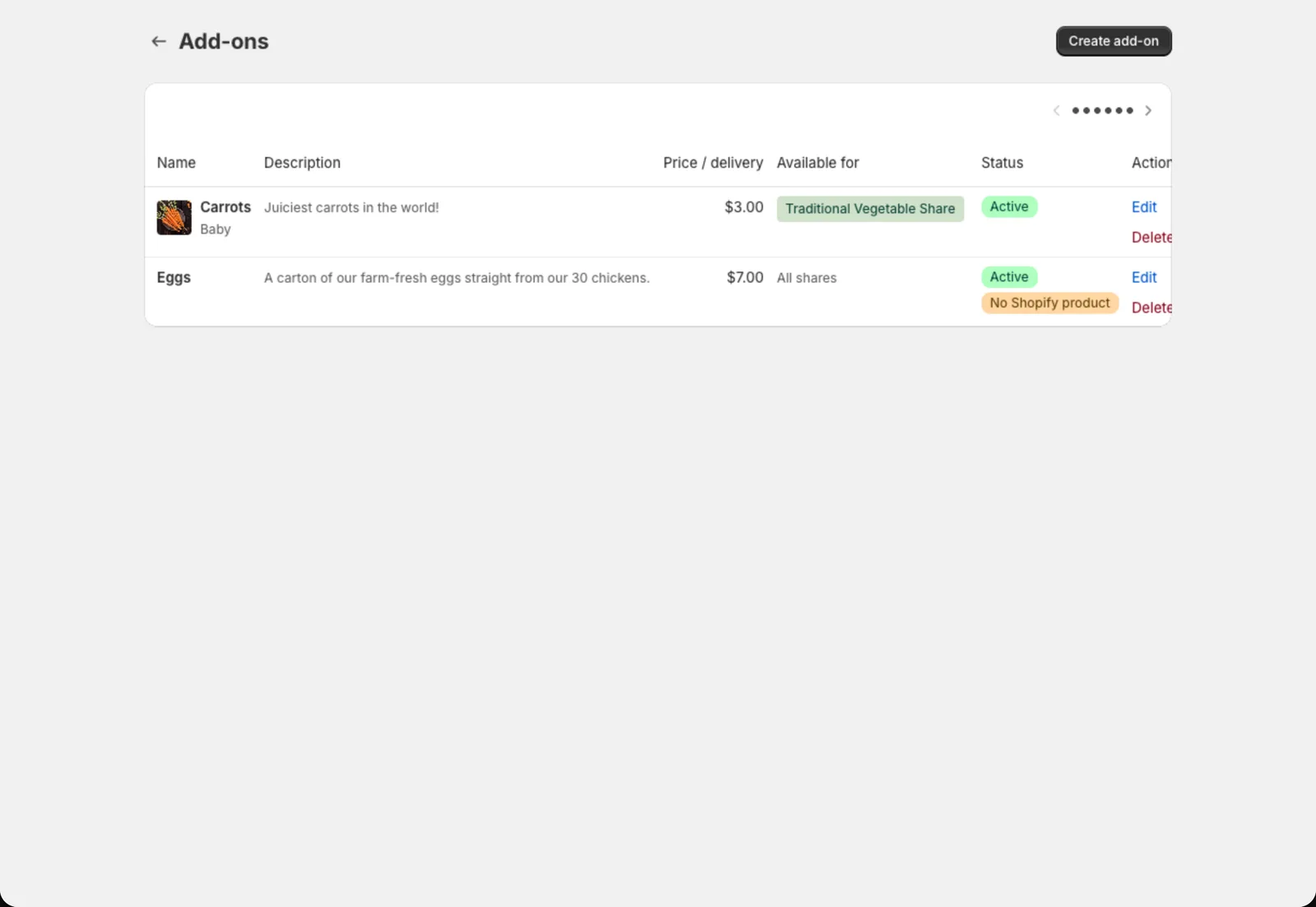
Sell extras like eggs, bread or flowers alongside a share, every week or just once.
Add-ons are extras members can add to their share, like a dozen eggs, a loaf of bread or a flower bunch. They’re billed together with the share and show up on the pack list next to the box.
Create an add-on
- Go to Copia → Share Types and click Add-ons.
- Click Create add-on.
- Search for and select the Shopify product for the add-on. Every add-on needs one, so create it in Shopify first.
- Fill in the details:
- Name and description: what members see
- Price per delivery
- Unit (dozen, loaf, pint…): shown on harvest totals and the pack list
- Max quantity per member: set it to 1 to hide the quantity picker
- Choose the Allowed delivery frequencies: every delivery, every other delivery, monthly, or just once.
- Under Available for, pick which share types can add it. Leave it blank to offer it with every share type.
- Click Save.
Every other delivery: whose schedule?
For add-ons that come every other delivery or monthly, Delivery cadence counts from decides which weeks they land on:
- Member: counts from the member’s own first delivery
- Season delivery #1: everyone gets it on the same weeks, which makes packing simpler
Adding an add-on for a member
Members can add add-ons at signup or later from the member portal. You can also add one yourself: open the member, scroll to Add-ons, and click Add an add-on. For a one-off extra on a single delivery, open that delivery from the member’s upcoming deliveries and use Add for this delivery.
When an add-on change starts
A change to a recurring add-on starts with the member’s first delivery that isn’t billed yet. Deliveries that are already paid, invoiced or being billed keep the add-ons they were billed for, so the box always matches what the member paid. When you add, change or remove an add-on and some deliveries are already billed, Copia tells you which delivery the change starts with.
Members changing their own add-ons in the portal also have to wait for the change cutoff: a delivery that’s locked keeps its add-ons too.
Members who paid for the season upfront
Members who paid for the whole season at signup have already paid for every delivery, so their add-on changes don’t wait. A change reaches all their paid deliveries that aren’t locked yet, and Copia settles the difference:
- Adding an add-on or raising the quantity: Copia uses the member’s credit first. For the rest, it emails them an invoice with a Pay button. The add-on goes in their boxes right away, and they owe the invoice like any other.
- Changing it again before paying: the unpaid invoice is replaced by one invoice for the new total, so they only ever have one to pay.
- Removing an add-on or lowering the quantity: this first takes the amount off any unpaid add-on invoice. Anything left goes to their credit balance and is used on their next add-on invoice.
This works the same when you change an upfront member’s add-on from their member page: Copia tells you what was invoiced or credited. Every invoice, payment and credit shows in the member’s activity log.
If an invoice can’t be sent (for example, Shopify is down), the member is told they owe the amount and that you’ll send an invoice. The member’s activity log notes it. Invoice them from Shopify by hand, or change the add-on again to retry.
Tip: Each season is its own membership, so credit from one season doesn’t carry into the next. If a member should get money back instead, refund them in Shopify.
Turning an add-on off
Uncheck Active to hide an add-on from the signup form. Members who already have it keep it.