Billing members
Bill every member for a delivery date in one go, see who has paid, and handle anyone who hasn't.
Copia bills members one delivery date at a time. You pick a date, check who’s being billed, and click run. Each member’s bill becomes a regular Shopify order, so payments, refunds and receipts all work the way they already do in Shopify. See Copia and your Shopify orders for what you’ll see in Shopify.
Run billing for a delivery
- Go to Copia → Billing.
- Pick the Delivery date. Copia shows a preview: every member with a box that day and what they’ll be billed.
- Untick anyone you want to leave out of this run.
- Choose how to collect payment:
- Charge now: emails each member an invoice to pay online (see below)
- Collect on-site (card or cash): creates each member’s order but leaves it unpaid, so you collect at pickup or delivery
- Click Run batch billing.
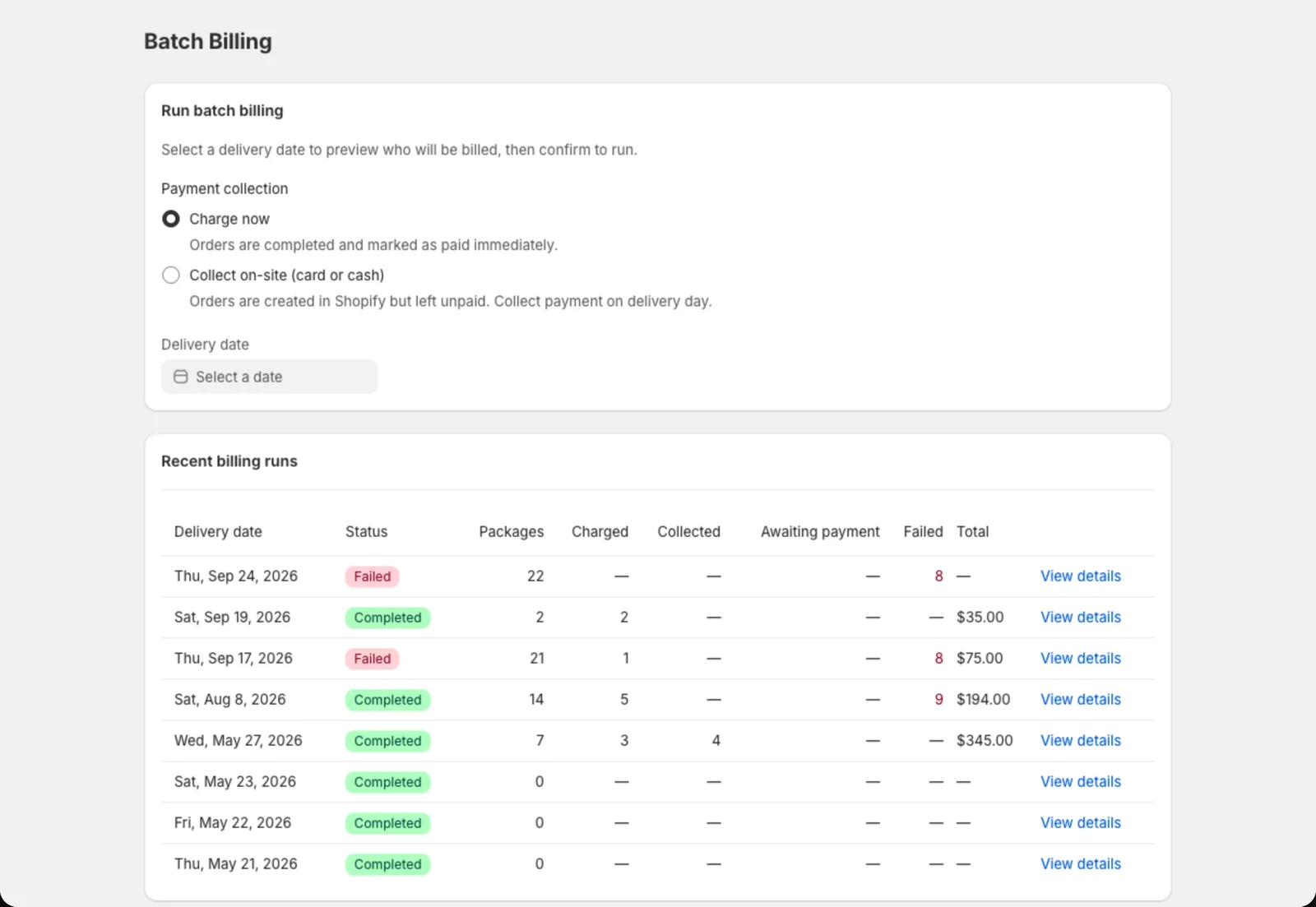
Billing runs in the background. You can leave the page, and the run shows under Recent billing runs when it’s done.
How members pay today
With Charge now, each member gets an email from your farm with a link to a Shopify invoice. They pay it like any online order. When they do, Copia marks their box as paid. You don’t need to do anything.
Coming soon: automatic card charging. Copia will be able to charge members’ saved cards automatically, so they don’t have to pay an invoice each time. It’s waiting on approval from Shopify. Until then, online payment is always by invoice.
What gets billed
- Credits come off automatically. See Holds, skips and credits.
- Add-ons due that week, and any bill adjustments, are added as their own lines.
- Delivery fees are added for home delivery members.
- Members who pay every 2, 4 or 8 deliveries are billed for the whole bundle on their first delivery. On the other weeks they show as Bundled from previous delivery and aren’t billed again.
- Skipped, held and cancelled boxes are left out.
- Prices are checked right before billing. If a size’s price changed, or an add-on was added or dropped, the bill uses what the member has now.
Members who haven’t paid by delivery day
Some invoices won’t be paid in time. On delivery day, Copia follows your setting in Settings → Delivery settings → Unpaid setup invoices:
- Hold the delivery until they pay: the box comes off the pack list
- Ship the delivery anyway: the box stays on the pack list, and you follow up
- Collect payment on-site: Copia creates an unpaid order for that delivery so you can take payment at pickup
Watch for late payments. Once delivery day passes, Copia stops matching that invoice. If a member pays it afterwards, their box isn’t marked paid. With Collect on-site, the old invoice also stays payable next to the new order, so a member could pay twice. If someone says they paid late, find the order in Shopify, then refund it or add the amount to their credit balance.
Pay-in-person members
Members who chose pay in person at signup don’t pay online, but billing doesn’t separate them out. A Charge now run emails them an invoice like everyone else. To avoid that, untick them in the preview and bill them in a separate Collect on-site run, which creates unpaid orders. Then take payment at check-in or on Shopify POS, or click Mark as paid on the delivery in their member page.
When billing a member fails
Sometimes Copia can’t create a member’s order at all, for example when a product was deleted in Shopify. Failures show:
- On your dashboard under Failed Charges
- In the billing run’s details, with the reason
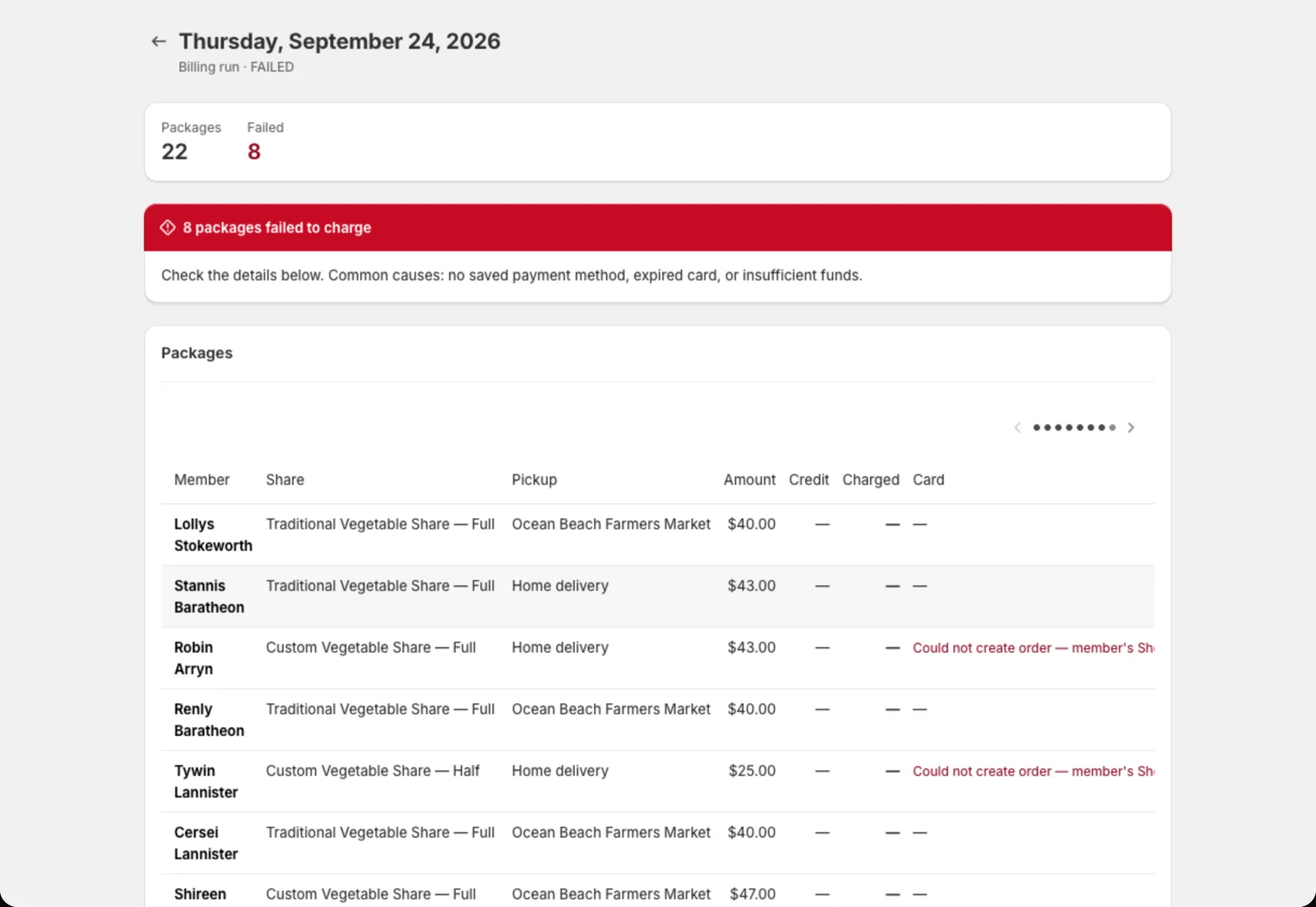
The member also gets a Payment failed email.
Failed boxes aren’t retried automatically, and running billing again for the same date skips them. Fix the cause, then collect for that box another way: send an invoice from Shopify, or take payment at pickup.
Good to know
- Running billing twice for the same date is safe. Only boxes that haven’t been billed yet are included, so nobody is billed twice.
- Added a member after billing ran? Their box for that date is still unbilled. Run billing for the date again to bill just the new boxes.
- Changed a box after billing? If you skip add-ons or change items on an invoiced delivery, the member page offers Update invoice so their bill matches.
- Cancelling vs refunding in Shopify: cancelling an order puts the box back to unbilled, and the next billing run bills it again. Refunding in Shopify doesn’t tell Copia anything. See Copia and your Shopify orders.
- Pausing or cancelling a member drops any box that’s invoiced but not yet paid, and cancels that unpaid order. Paid boxes are never touched.