Delivery routes
Turn a day's home deliveries into the fastest route, split it between drivers, and send each driver a link.
If you deliver to members’ homes, Copia can plan the driving order for you. It finds the fastest loop from your farm through every stop and back, and splits it fairly between drivers if you have more than one. Drivers get a link on their phone with every stop, the member’s details, and one-tap navigation. No app to install.
Before you start: Add your Farm address in Copia → Settings. Routes start and end there.
Create a route
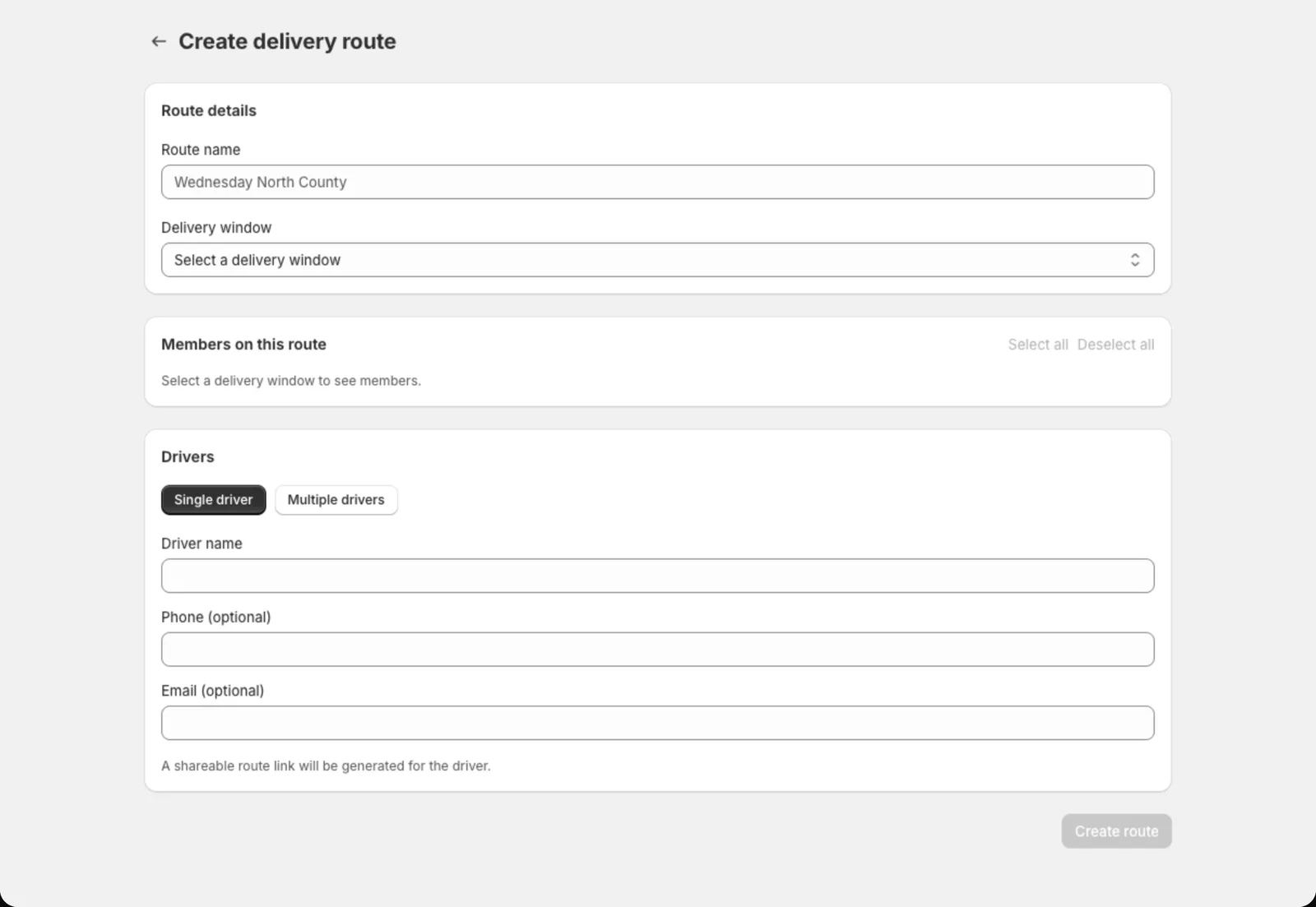
- Go to Copia → Delivery Routes and click Create route.
- Give it a Route name, like “Wednesday North County”.
- Pick the Delivery window (the delivery date).
- Check the members to include. Everyone with a home delivery that day is listed and ticked. Paused or cancelled members are listed unticked with a note.
- Under Drivers, choose Single driver or Multiple drivers, and add each driver’s name. Phone and email are optional, but useful for sending them their link.
- Click Create route.
Copia plans the route in a few seconds. With multiple drivers, it splits the stops by area so everyone finishes at about the same time.
Watch for far-away stops
If an address is far from everything else, usually a typo or an out-of-area address, Copia flags it before you create the route. One stray stop can add hours, so check it and choose Leave off route if needed.
The route page
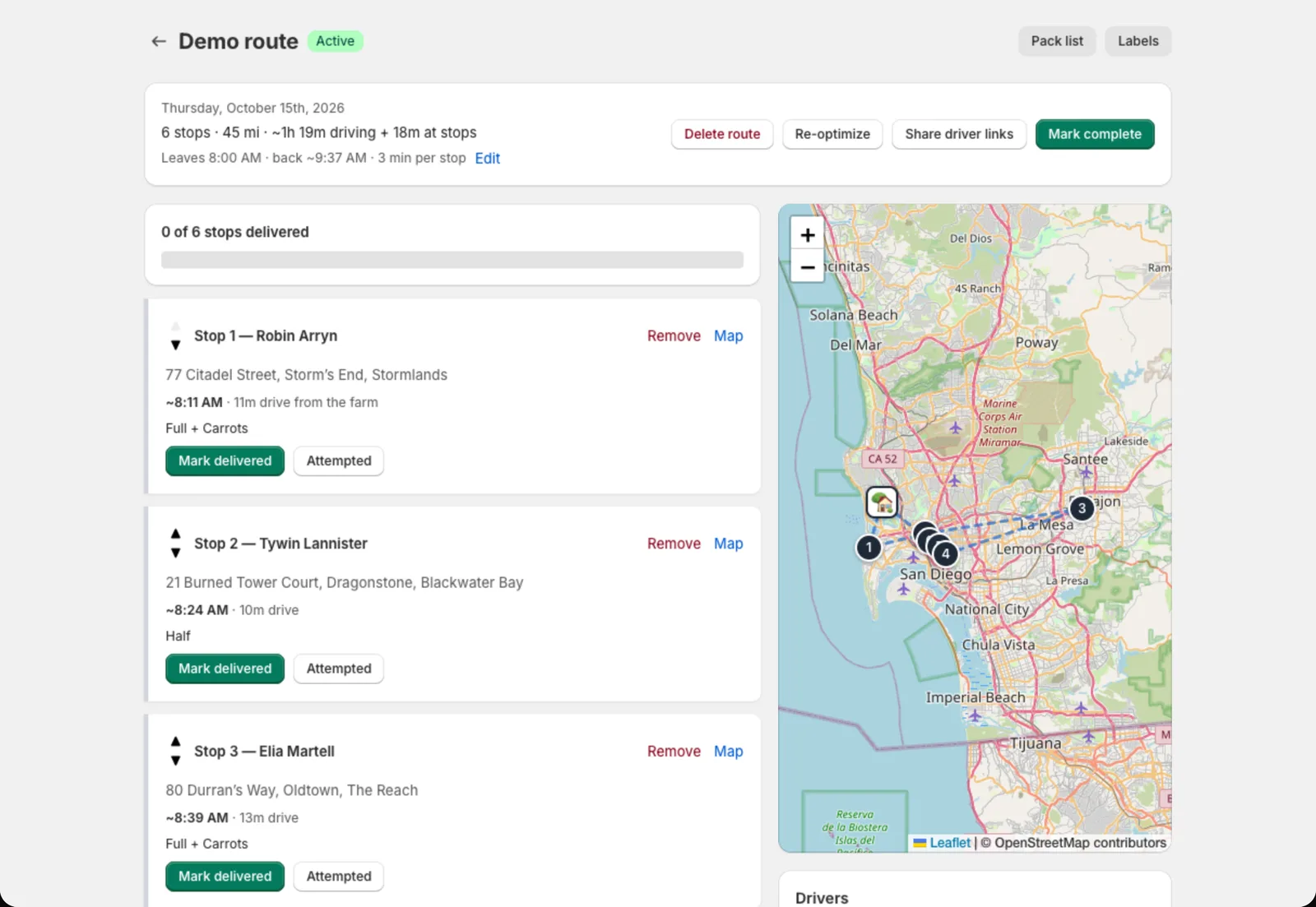
The route page shows a map with numbered stops, the order, drive times, and an estimated arrival time for each stop.
- Set the Start time and Minutes per stop to make the arrival times accurate.
- Use the arrows to move a stop up or down, or Remove stop. Copia re-measures the drive times.
- Re-optimize re-plans the whole route, for example after adding stops.
- Pack list and Labels print just this route, in stop order.
- Mark complete when the day is done. This marks the route’s Shopify orders as fulfilled, except stops where the driver reported an issue.
Send drivers their route
Click Share driver links. Each driver has their own link showing only their stops. You can:
- Email all drivers (if you added their emails)
- Text the link from your phone
- Open link to see exactly what the driver sees
Links work for 7 days after the delivery date.
What drivers see
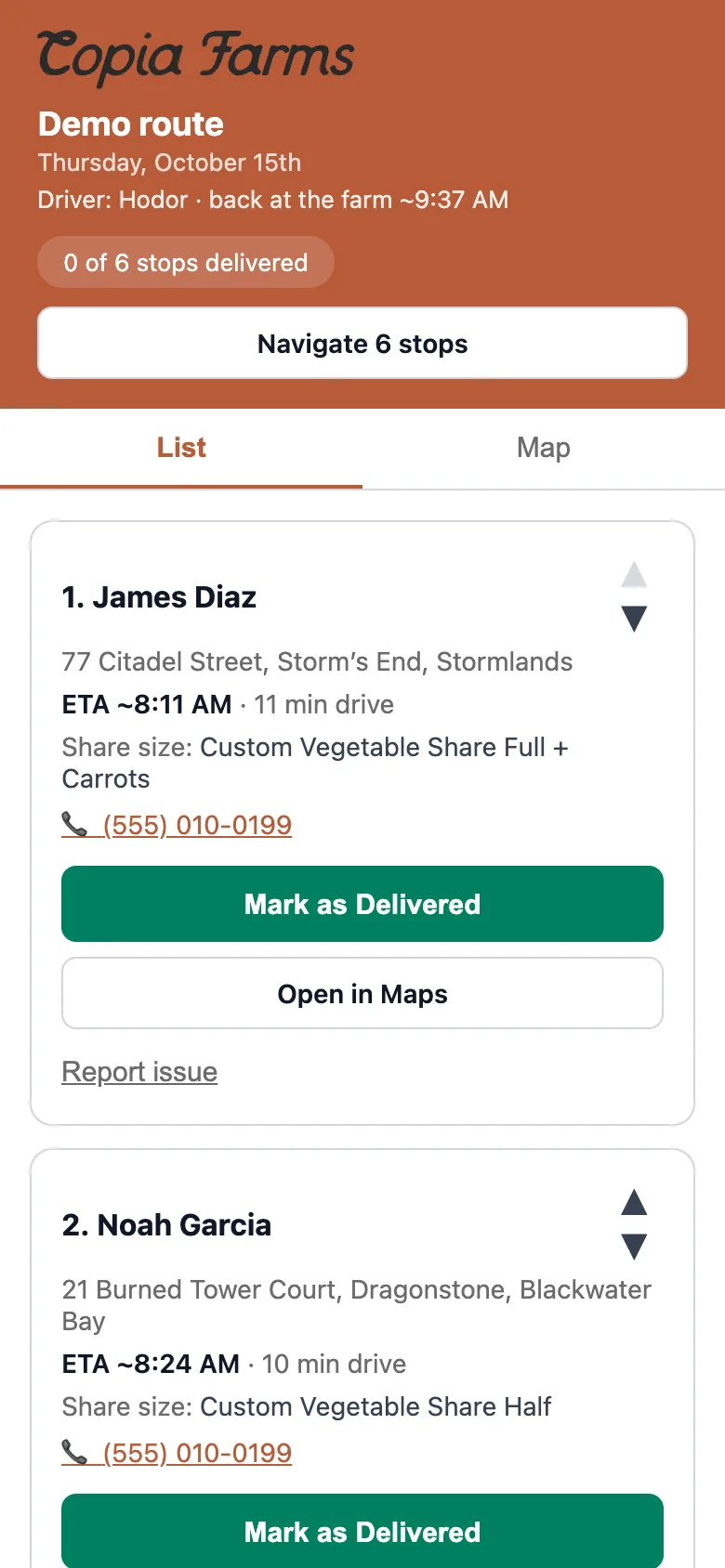
On their phone, drivers get:
- Progress at the top (“2 of 6 stops delivered”), with a List or Map view of their stops
- Each stop’s name, address, phone, size, add-ons and delivery instructions
- Open in Maps for one stop, or Navigate to load the next several stops into Google or Apple Maps at once
- Mark as Delivered as they go, or Report issue (not home, wrong address, and so on) with a note
You see their progress live on the route page in Copia.
Shopify orders are fulfilled as you deliver
When a driver taps Mark as Delivered, that member’s Shopify order is marked Fulfilled. When you click Mark complete on the route, every stop’s order is fulfilled except stops where the driver reported an issue. This works the same whether the order is paid or still unpaid. Members don’t get a Shopify shipping email; they get Copia’s own “delivered” email when the driver marks their stop.
Tip: Fulfilling an order doesn’t mark it paid. Unpaid orders stay unpaid in Shopify until the member pays. See Copia and your Shopify orders.