Adding and importing members
Members can sign up on your store, or you can add them by hand or import a whole list from a spreadsheet.
There are three ways members get into Copia:
- They sign up on your store using the signup form. This is the usual way, and nothing is needed from you.
- You add them one at a time, for example someone who signed up in person at the market.
- You import a list from a spreadsheet, for example when moving from another CSA platform.
Every member is also a Shopify customer. If the email already belongs to a customer in your store, Copia uses that customer. Otherwise it creates one.
Add a member by hand
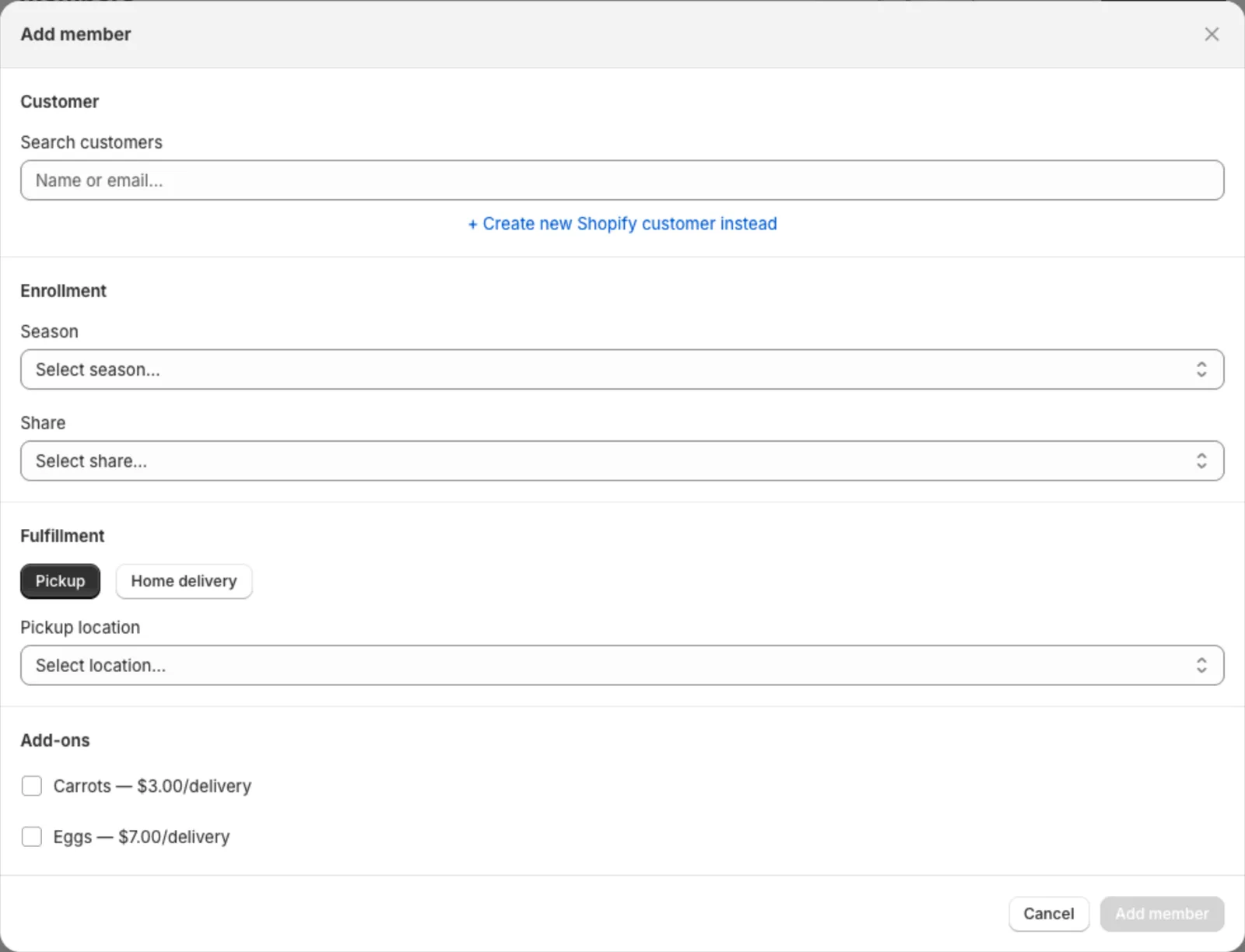
- Go to Copia → Members and click Add member.
- Search for an existing Shopify customer, or enter a first name, last name and email (phone is optional).
- Under Enrollment, choose the season, share type and size.
- Choose the billing frequency (how many deliveries per charge) and pickup frequency (how often they get a box).
- Under Fulfillment, choose Pickup and a location, or Home delivery and enter their address and zone.
- Optionally add add-ons.
- Click Save.
Copia creates their upcoming deliveries right away, so they’ll be included in the next billing run.
Import members from a spreadsheet
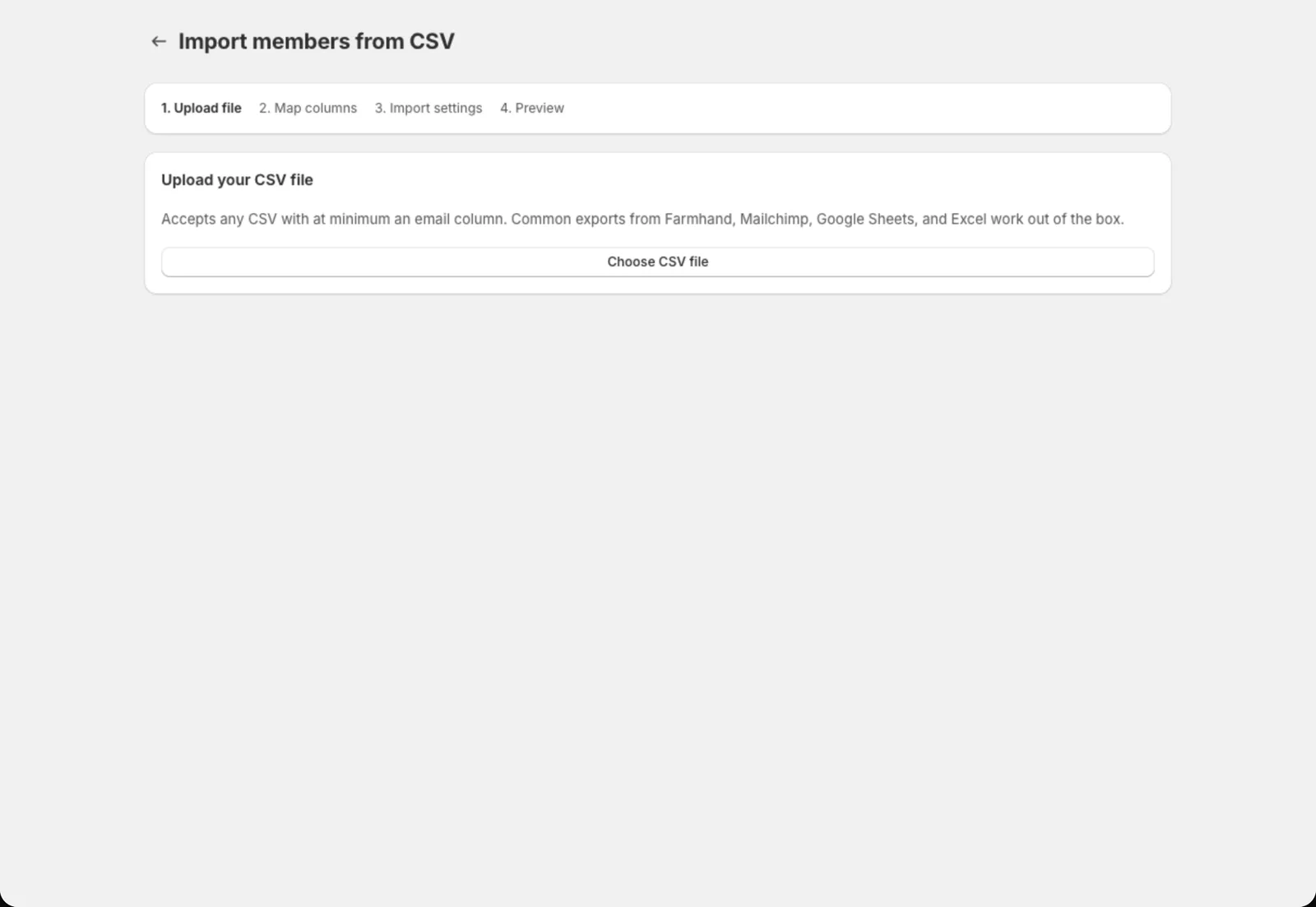
Any CSV file works as long as it has an email column. Exports from Farmhand, Mailchimp, Google Sheets and Excel all work.
- Go to Copia → Members and click Import from CSV.
- Click Choose CSV file and pick your file.
- Map your columns. For each column in your file, tell Copia what it is: name, email, phone, delivery address, size, add-ons… Choose Ignore this column for anything else.
- Import settings. Choose the season, share type, billing frequency, payment method (online or cash at pickup) and fulfillment for everyone in this file. You can change individual members afterwards.
- Preview. Check the list. Rows missing an email are flagged so you can fix them.
- Click Import.
Tip: Leave Generate packages for this season turned on. That way imported members show up in billing, pack lists and check-in straight away.
Finding members
The Members list can be filtered by share type, season, status (Active, Paused, Cancelled, Waitlist) and join date. Click any name to open their member page. See Managing a member.
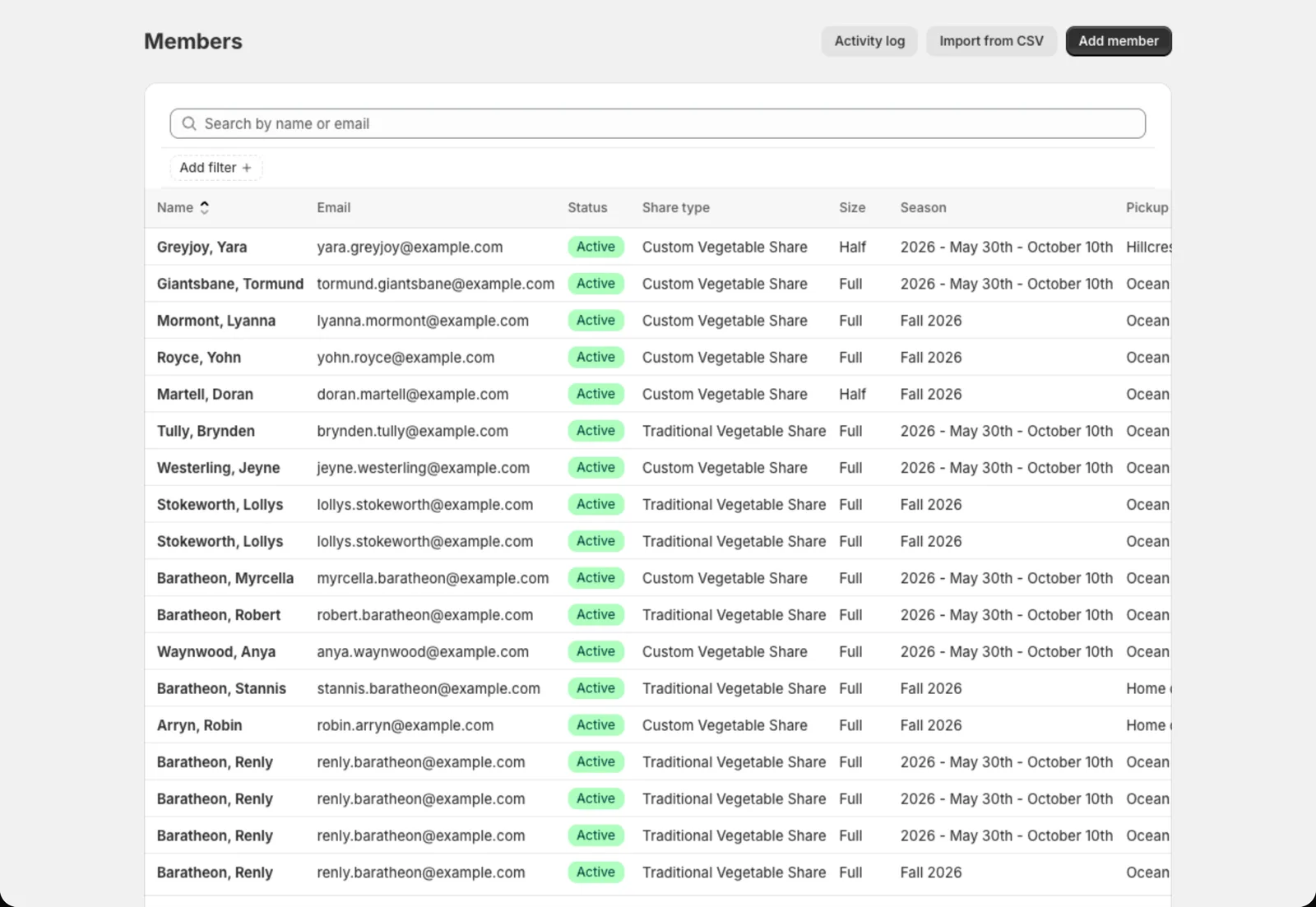
Activity log (top of the Members page) shows every signup, cancellation, hold, skip and charge across your whole CSA, newest first.